Recording
Record a book for a specific child
Every recording starts with one question. Most people miss it. Here's what it changes.
-
Start a recording
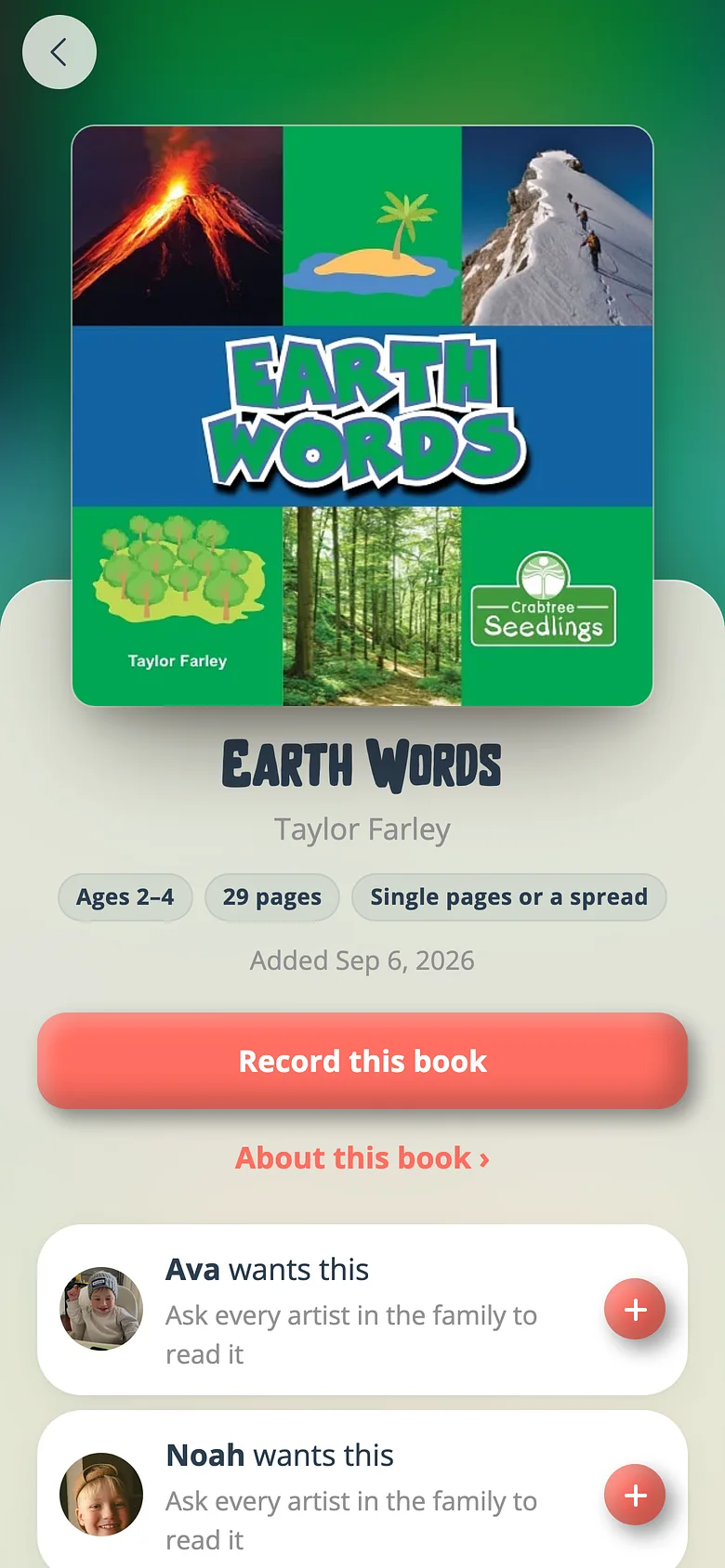
From any book on the shelf, press Record this book. -
Choose the child
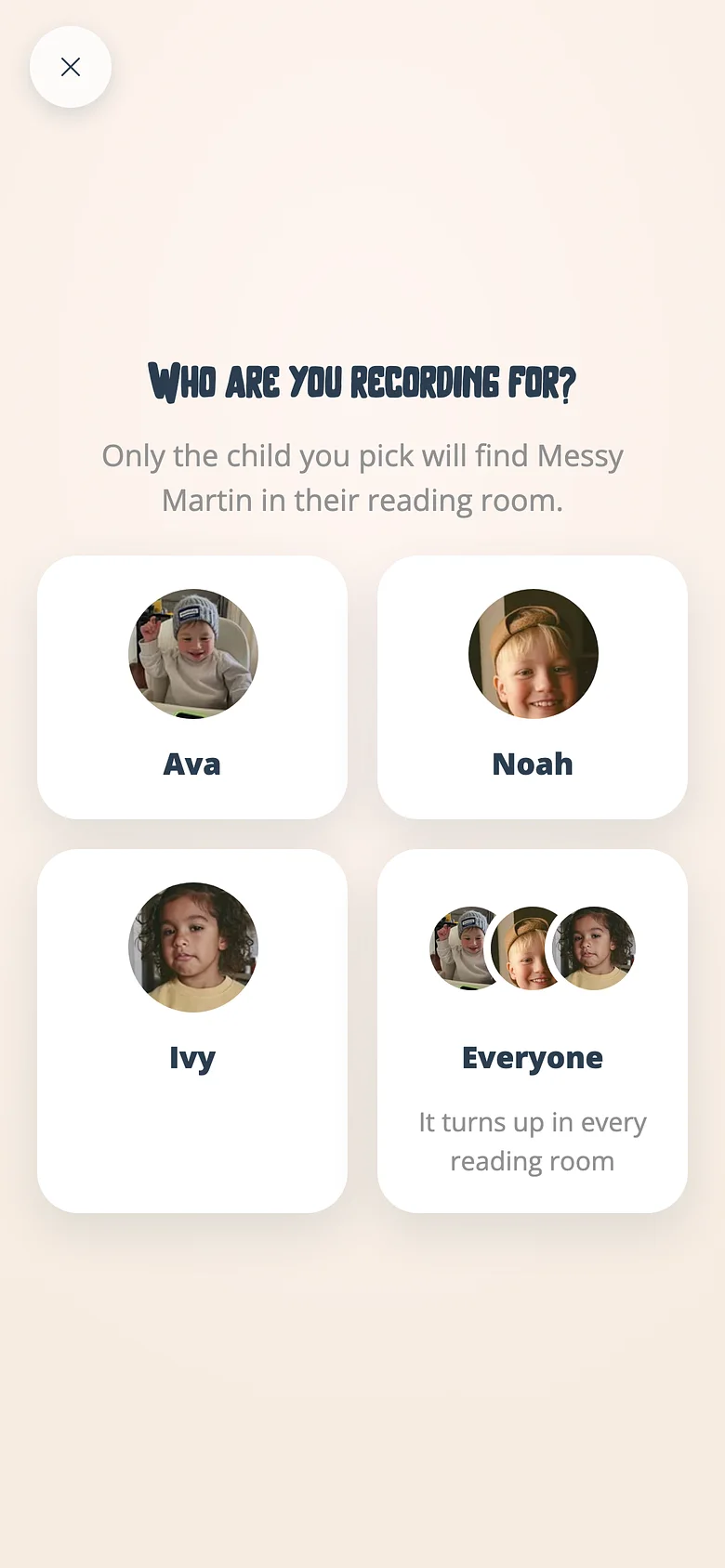
The first screen lists the family's listeners and "everyone". Tap the child. That's the whole setting. -
Make it theirs
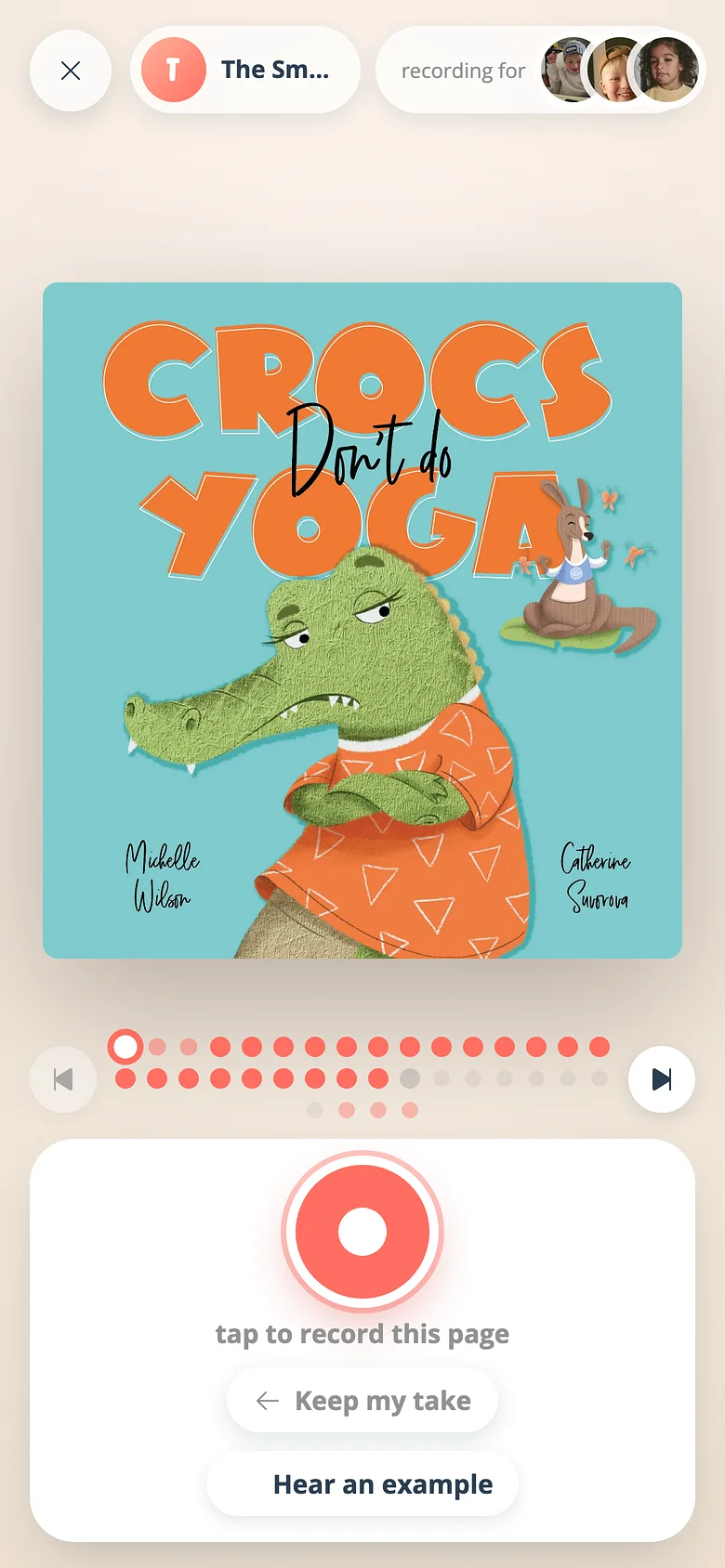
Now say their name. Add the aside about the dog. Explain the word they always ask about. Nothing you say between the pages has to match the print. -
Find it on their shelf
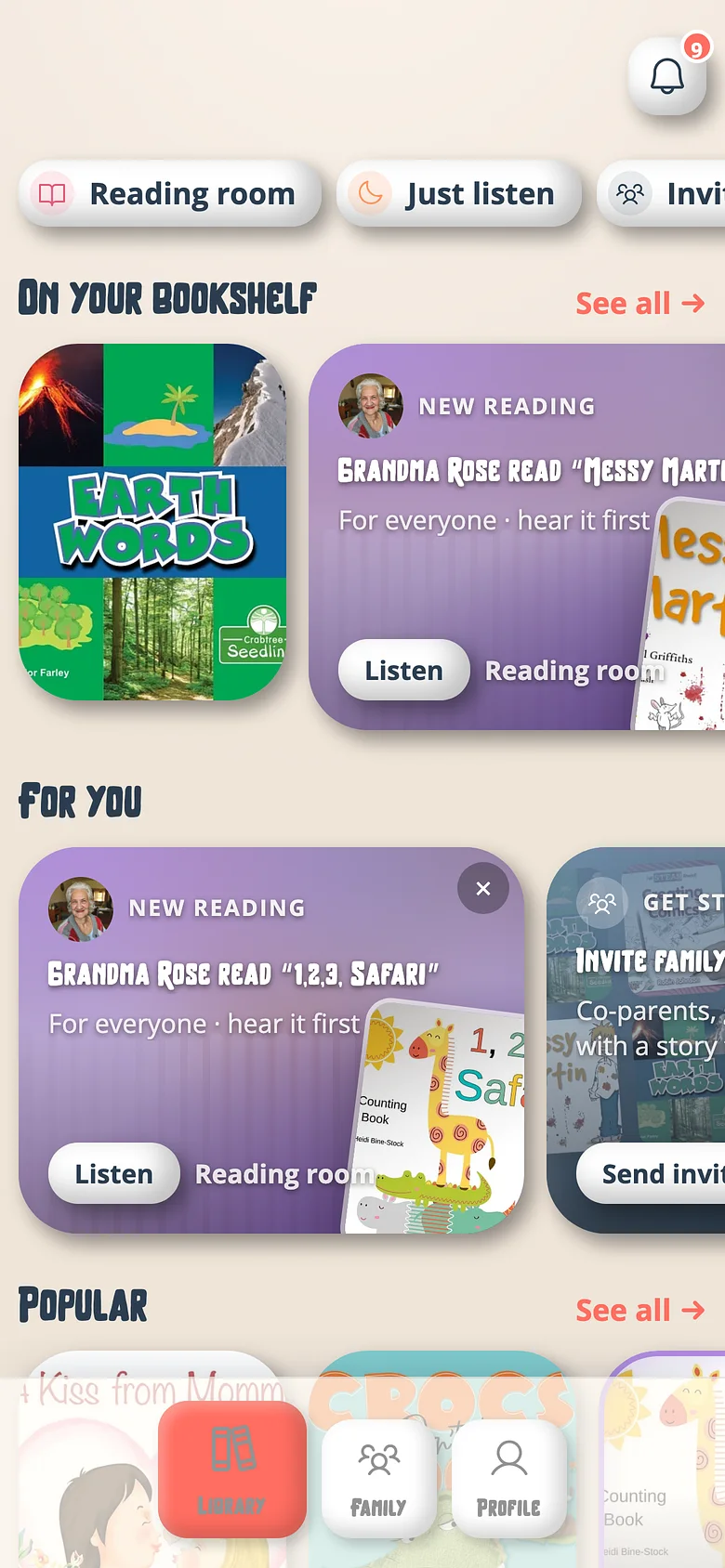
When published, the recording sits on that child's shelf. Open the app as them and it's the one waiting. Record it again for their sibling and that one is different.
Good to know
- A recording for everyone is the one a grandparent can lend to a second family, so it's worth having both.
- Two versions of one book by two people sit side by side; the child picks whose voice reads tonight.
Next
Record your first book
The whole thing is a book, a page and a red button. Here's the walk from an empty shelf to a published recording.
Read the guideInvite Grandma and Grandpa to record
People are always free. An invitation is an email; whoever opens it is a recording artist for your family.
Read the guideTry it with a real book
Free to start. The first page takes a minute.